Shadowrocket is a paid client for Apple platforms, available only on the App Store. Verify the listing and app details before purchasing. The US reference price is $2.99; actual pricing, system requirements, and purchase availability are determined by the App Store listing.
This is the official Shadowrocket website and manual. This page explains how to buy the app, install it on your devices, and restore previous purchases.
01 / STORE
App Store and Apple ID region
The app isn't available on the mainland China storefront. App Store availability depends on the country or region associated with the Apple ID used for purchases—not your device language, regional format, or current location. If you can't find the app or the product page says it's unavailable in your region, check your storefront account first instead of repeatedly changing your search terms.
The main button on this page opens Shadowrocket's App Store product page. The App Store may show an availability message based on your account and device. The storefront path in the link doesn't change your account's storefront or replace checking your account region. Refer to what the App Store displays on your device.
It's also easy to confuse the accounts used for different purposes. The Apple ID signed in at the top of Settings may differ from the account used for Media & Purchases. To check which account owns a purchase, look at the latter. Simply being signed in on the device doesn't tell you which account the purchase belongs to.
How to check your storefront region
Open Settings and tap the Apple ID account at the top.
Tap Media & Purchases, then View Account. Follow the prompts to authenticate.
Tap Country/Region to see your current storefront region.
To view the region-change options, tap Change Country or Region on that page. Review Apple's terms before deciding whether to continue.
Labels may vary slightly between system versions. Changing your region may affect account balance, existing subscriptions, payment methods, and Family Sharing settings. Check the terms shown for your account; opening the region-change options doesn't guarantee that you can complete the change.
02 / VERIFY
Verify the developer, icon, and app ID
Before purchasing, check all three details below. A similar name, a high position in search results, or a similar-looking icon isn't enough to confirm an app's identity. Open the full product page rather than relying on the name in search results. Shadowrocket is the product name to look for.
Developer
Check the full name
Shadow Launch Technology Limited
Check the developer name on the App Store listing or information section. Don't rely on a few matching words. If the name doesn't match, stop and return to the product page linked here before proceeding.
Check the official icon
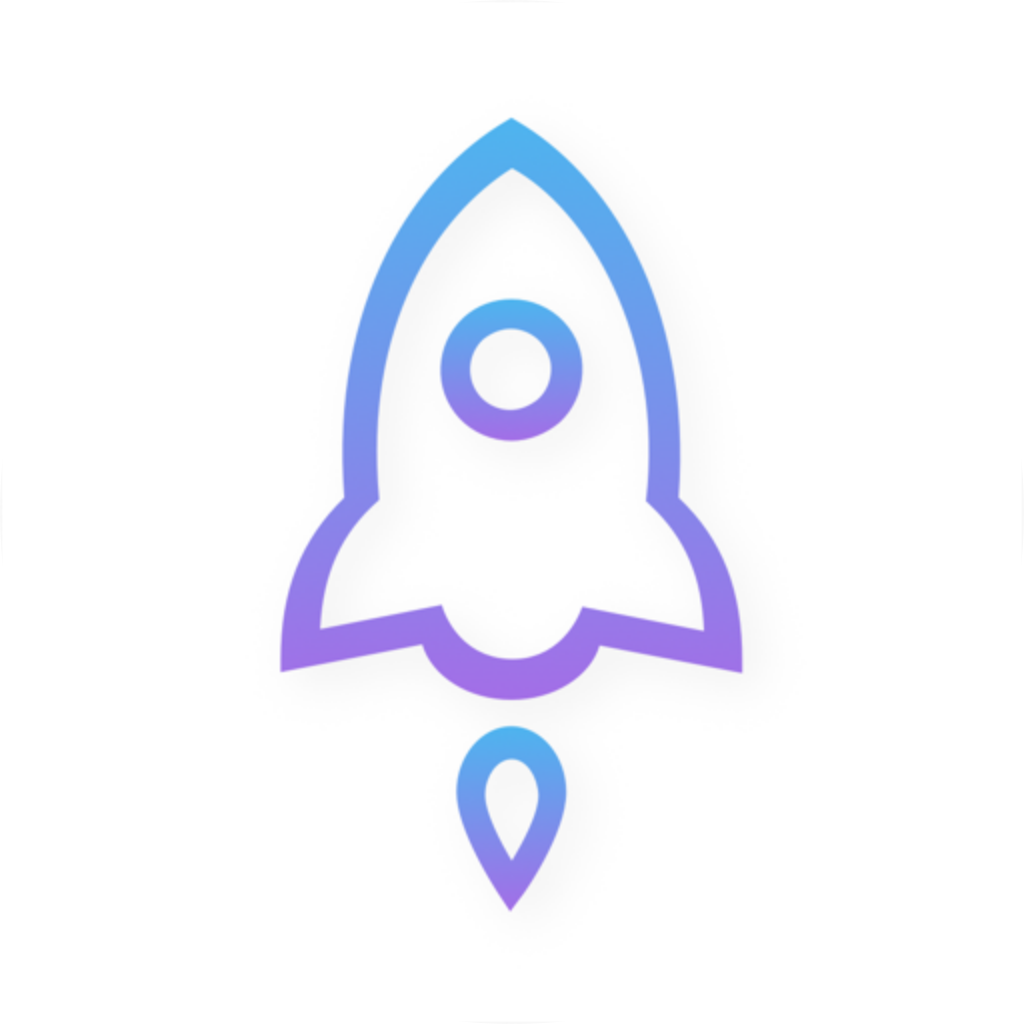
The official icon is a blue-purple outlined rocket on a white background, matching the image shown here. Use the icon as one clue, and also check the developer and app ID. Don't rely on appearance alone.
App ID
932747118
The App Store product page URL identifies the app with id932747118. Check this app ID—not the search result's position or promotional text appended to its name.
What the official app looks like
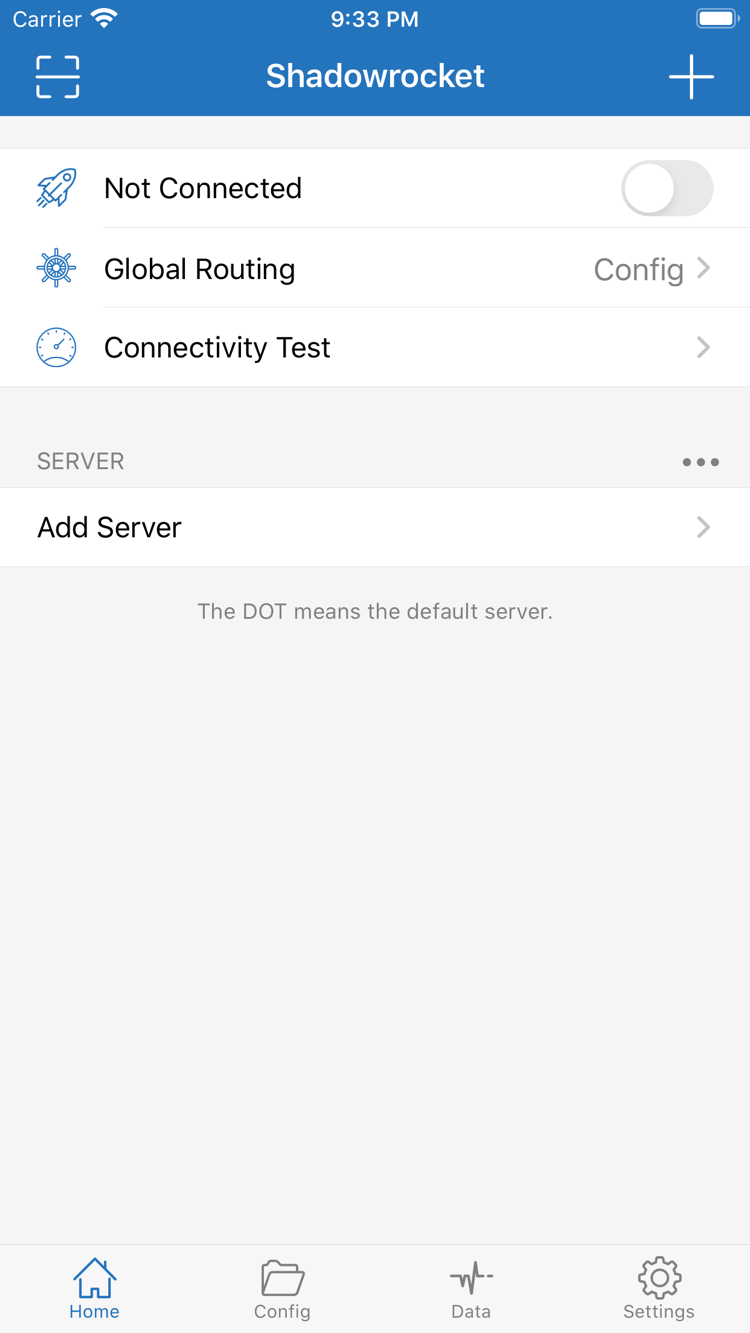
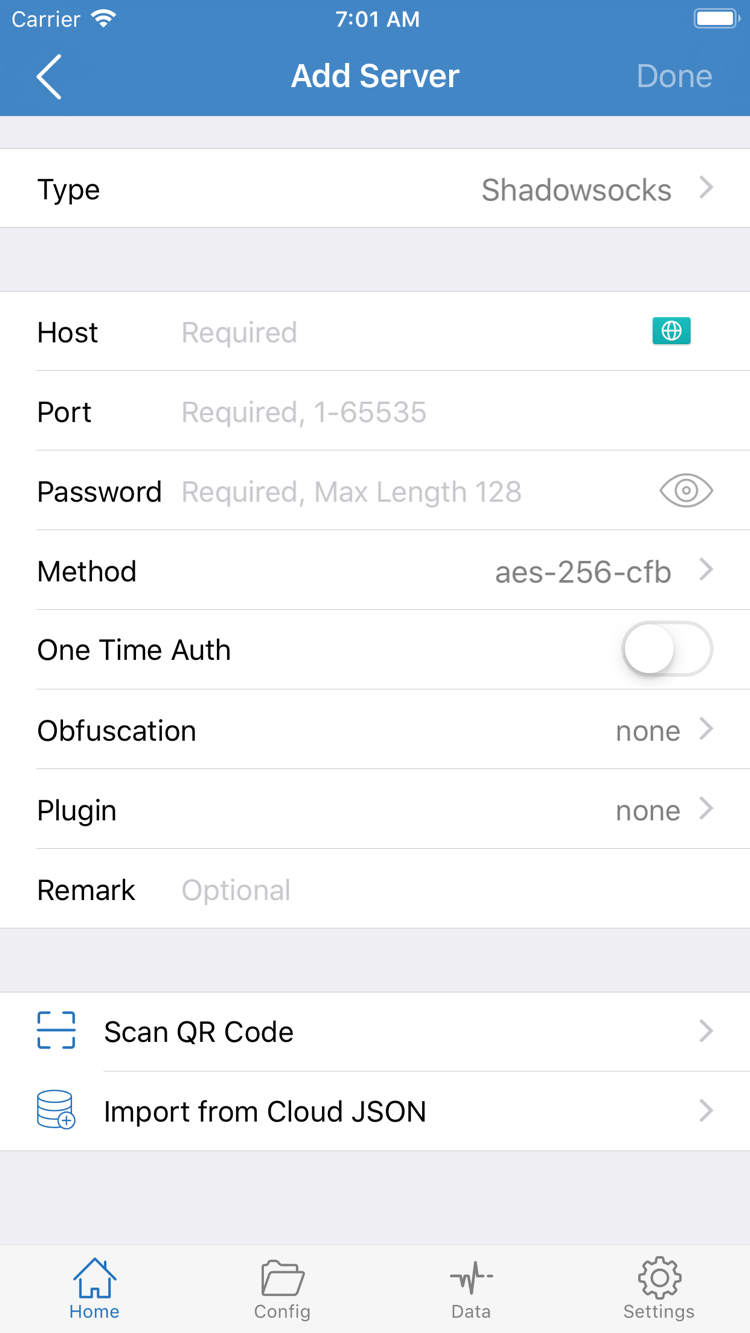
These two images are official English screenshots uploaded to the App Store by the developer. Home shows the connection switch, Global Routing, Connectivity Test, and the SERVER section. Add Server shows the fields for entering server details manually. The screenshots help identify the interface; they don't mean a working server will be available automatically after installation.
Don't copy the sample details shown in the official screenshots as your own connection information. To use the app, enter your own server details or import your own subscription. The layout may vary by device and app updates. Check the App Store listing details alongside the labels in the installed app; differences in individual screen elements don't by themselves mean you've installed the wrong app.
Home: connection status and server listAdd Server: enter server details
03 / IPHONE
Install and open Shadowrocket on iPhone
On your iPhone, open the App Store product page linked here. Verify the listing, then complete the purchase and installation through the App Store. For a first-time purchase, follow the system prompts to confirm payment and authenticate. If the app is already associated with your account, the App Store may show a cloud download button or Open. Button labels and states may vary; check the listing on your device.
Before installing, expand the product page's compatibility section and check that your device meets the requirements. Refer to the App Store listing for system requirements rather than relying on outdated system-version numbers in older guides. If you can't proceed, check the system requirements, available storage, and account verification separately, following the App Store prompts.
When you first open Home, seeing Not Connected before establishing a connection is normal. You can first locate Add Server and Global Routing, then import your own subscription or server details. Purchasing the app, adding a server, and connecting successfully are three separate steps; completing one doesn't mean the others are ready.
What is the VPN configuration permission?
When you start a connection for the first time, iOS may ask to let Shadowrocket add a VPN configuration and may require you to authenticate. This is the system's authorization process for managing network connections. Proceed only after confirming the request came from Shadowrocket, which you just installed and opened yourself.
Granting permission only allows the system to create the connection configuration. It doesn't confirm that the server details are correct or that the external network is available. Next, check your server selection, Global Routing, and connection status in Home, then verify with an actual request.
If you previously canceled the permission prompt, return to the app and start the connection again, paying attention to the system message. Don't toggle multiple settings before reading the prompt; doing so can make it harder to tell a permission issue from a connection issue.
Shadowrocket is available for both iPhone and iPad. If you bought it on iPhone, sign in to Media & Purchases on your iPad with the same Apple ID, then find and install it from your App Store purchase history. You don't need to buy it again just because you're switching from iPhone to iPad.
If the iPad App Store still shows a price, first check that you're using the same account, then check your purchase history. Don't pay again straight away. Refer to the App Store listing for system requirements and purchase availability; check the product page on the device you want to install it on.
The larger iPad display may change how lists, details, or navigation appear, and the layout may also vary between portrait and landscape. Use interface labels such as Home, Add Server, Config, and Settings to find your way around; buttons don't need to be in the same positions as in the iPhone screenshots.
Check purchase ownership and configuration separately
Owning the app on the same account doesn't mean both devices have the same configuration. After installation, check the server list, selected server, Global Routing, and system connection permission on your iPad. You also need to confirm the terms for your own subscription.
To transfer existing settings, first confirm that you can export or back up the data on the original device. Import it on the new device and verify that it works. Don't erase data on the original device until you've confirmed the backup is usable. Purchase history can restore the app, but it doesn't replace a configuration backup.
The compatibility section on the same App Store product page also lists Mac, Apple TV, and Apple Vision. Check the listing on your target device. Universal purchase availability and system-version requirements are determined by the App Store listing; App Store is the only place to get the app.
05 / RESTORE
Restore purchases after changing devices or reinstalling
Use the Apple ID associated with the original purchase to redownload Shadowrocket from your App Store purchase history without paying again. The key is to find the original purchase record, not to rely on the old device name or simply search again. Whether you're getting a new iPhone, reinstalling after deleting the app, or installing on an eligible iPad, start by checking your purchase history.
Reinstall from your purchase history
On your new device, check Media & Purchases in Settings and confirm that you're using the Apple ID associated with the original purchase.
Open the App Store, tap your account icon, and go to Purchased. On some system versions, you may find these records under Apps.
Find Shadowrocket, verify the developer and icon, then tap the redownload button.
Open the app and import your own subscription or server details. Check Config, Global Routing, and connection permissions before testing the network.
Can't find the purchase record?
Check the account before assuming the purchase is no longer available. The Apple ID signed in on the device may differ from the one used for Media & Purchases, and the original purchase may be associated with a different account than the one you're using now. Check your own purchase history to confirm which account owns it. If you hid the app, also check the account's hidden purchases.
If the page still asks you to pay, pause and check the original purchase record and current storefront status before confirming the transaction. For purchase history or payment issues, follow the steps provided on your App Store account page. This manual can't verify transaction outcomes for your account.
Family Sharing eligibility is determined by the App Store listing. Don't assume that “available for iPhone and iPad” means every family member's account has the same purchase record; these are separate purchase conditions.
06 / PURCHASE
Pricing and one-time purchase
What the purchase covers
Shadowrocket is a closed-source commercial app sold as a one-time purchase through the App Store; the app itself isn't billed monthly. The US reference price is $2.99. Other storefronts show local currency, and the final amount is shown on the App Store payment confirmation screen. Don't use the reference price on this page to estimate the actual charge.
The one-time purchase is associated with the Apple ID used at checkout. For a standard reinstall, first look in your purchase history. Check the App Store listing for eligibility on other Apple devices and related purchase terms. Verifying the app and payment account before purchase can make the record easier to find when you change devices.
App updates are delivered through the App Store. To see what's changed, check the product page's release notes. You may want to note your existing configuration before updating, then check your connection and rule results afterward. App updates, subscription updates, and configuration changes are separate tasks; completing one doesn't mean the others are done.
One-time app purchase ≠ connection service plan
Purchasing the app and obtaining an external connection service are separate. Paying for the app doesn't provide a server address, authentication details, or a usable subscription. Before using it, prepare your own existing subscription or server details, then import them according to their type and verify the settings.
This site doesn't provide, sell, or recommend servers or subscriptions. It explains how to import, configure, and check information you already have. Confirm your own subscription's validity period, device limit, and connection requirements with the service details you have; these can't be inferred from the app's one-time purchase price.
If you can't connect after installation, check the server status, Global Routing, DNS, and rules in turn. Buying the app again won't fix incorrect or expired connection details. Identify which step is failing before taking action.
Purchase FAQ
Download and restore FAQs
Can't find Shadowrocket on the App Store? Check these settings first.
First, check the country or region for the Apple ID used for Media & Purchases. The app isn't available on the mainland China storefront. Your device language and current location don't determine your storefront. Go to Settings → Apple ID → Media & Purchases → View Account → Country/Region, then open the App Store product page linked here.
The product page opens, but the download won't complete. What should you check?
Use the App Store message to identify whether the issue is related to your account's region, payment verification, device compatibility, or network. Check the purchasing account, available storage, and system requirements; refer to the App Store listing for system requirements. If a transaction is still pending, check your purchase history before trying to pay again.
Will I have to pay again after getting a new iPhone or reinstalling the app?
On the App Store, go to Account → Purchased using the Apple ID associated with the original purchase and find Shadowrocket. You can usually download it again without paying. If a price is still shown, check that Media & Purchases is using the original account. After reinstalling, you'll still need to import your own subscription or server details.
I bought Shadowrocket for iPhone. Can I install it on iPad?
Shadowrocket is available for both iPhone and iPad. On your iPad, use the same Apple ID used for the purchase and find the app in your App Store purchase history. Check the App Store listing for system requirements and purchase availability. Subscriptions, configurations, and connection status must be checked separately on each device.
Can I use Shadowrocket on Mac, Apple TV, or Apple Vision?
The App Store product page lists Mac, Apple TV, and Apple Vision in its compatibility section. Check the listing on your target device. Universal purchase availability and system requirements are determined by the App Store listing; App Store is the only place to get the app.
The app opens in English. Does that mean I installed the wrong app?
The interface language alone isn't enough to tell. Check the developer, Shadow Launch Technology Limited, the official icon, and app ID 932747118. English interface labels such as Home, Add Server, and Global Routing also appear in the official screenshots. This official manual keeps those labels in English so you can match them on screen.